
Start guide
Getting started with Palladium.
Palladium is a calm place to think — an infinite wall of notes that are really just markdown files in a folder you chose. Here’s how to use it, start to finish. Five minutes, and nothing to sign up for.
What you need
Chrome or Edge, on a desktop — they’re the browsers that can open a folder on your computer. And a folder: empty, or one that already has markdown in it. A Mac app is on the way.
The tour — 37 seconds
Open a folder
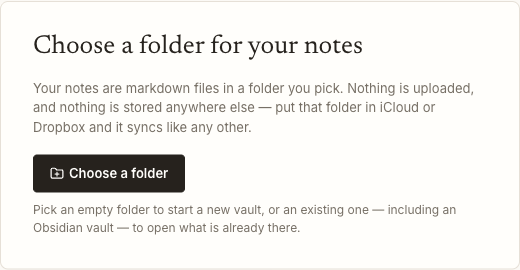
The first screen asks for a folder. Click Choose a folder
and pick one from your computer. That folder is your vault — every
note lives inside it as a plain .md file.
Pick an empty folder to start fresh, or an existing one — including an Obsidian vault — to open what’s already there. Nothing is uploaded, and your existing files are never modified. Put the folder in iCloud or Dropbox and it syncs like anything else.
Meet the wall
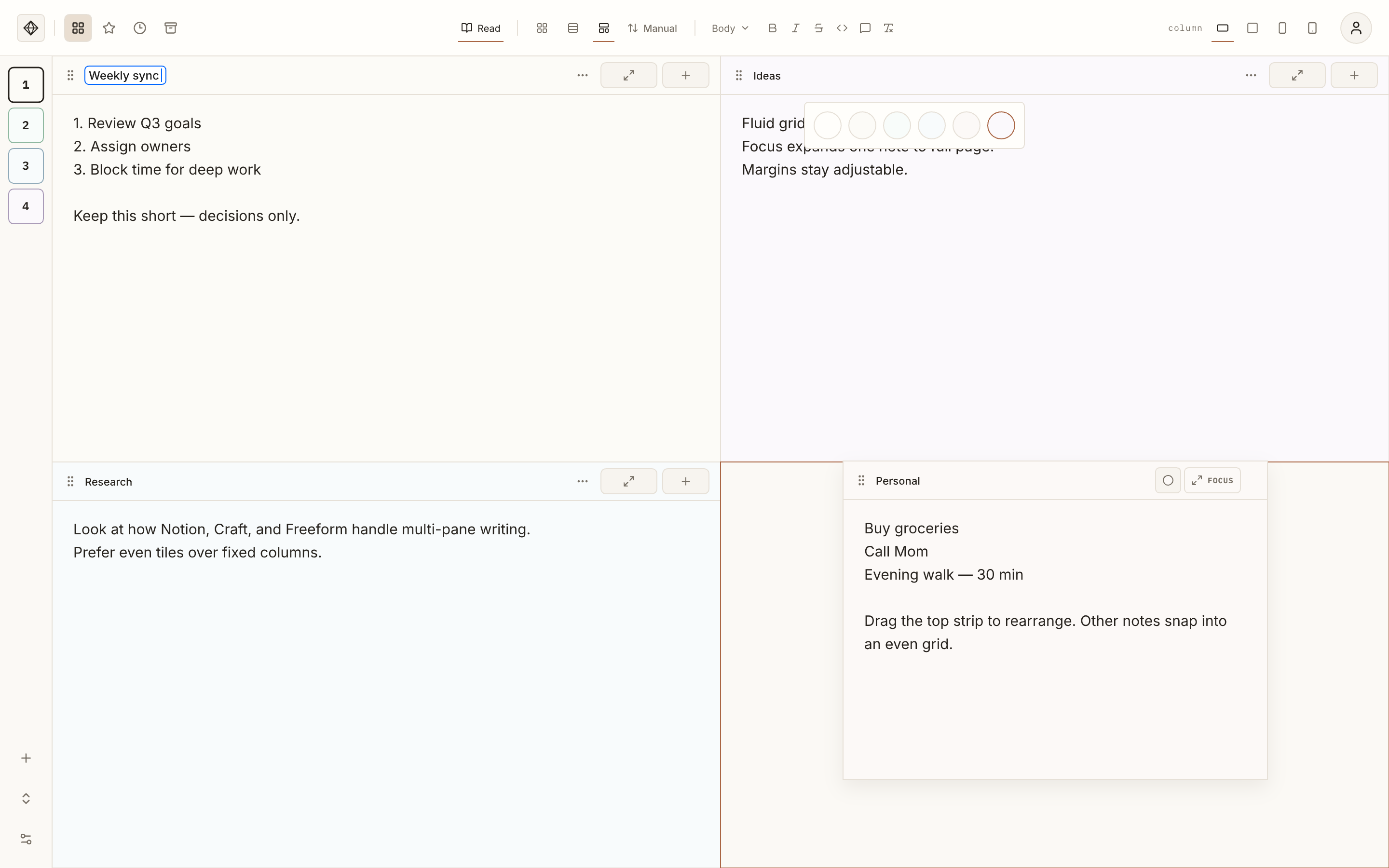
Your notes tile edge to edge, colour-tinted, with no gutters. This is the home screen — every note is here, live and editable in place.
Add one with ⌘ N, or the + on any card’s top strip to slot a new note right after it. Drag a card by that strip to move it — position is yours to keep, as long as Order is set to Manual. Change a note’s tint from its … menu.
Three ways to see the wall, from the toolbar: Mosaic (tiled), Column (one note per column — hold ⇧ and scroll to move across), and Hero (one large note above the rest).
Open one and write
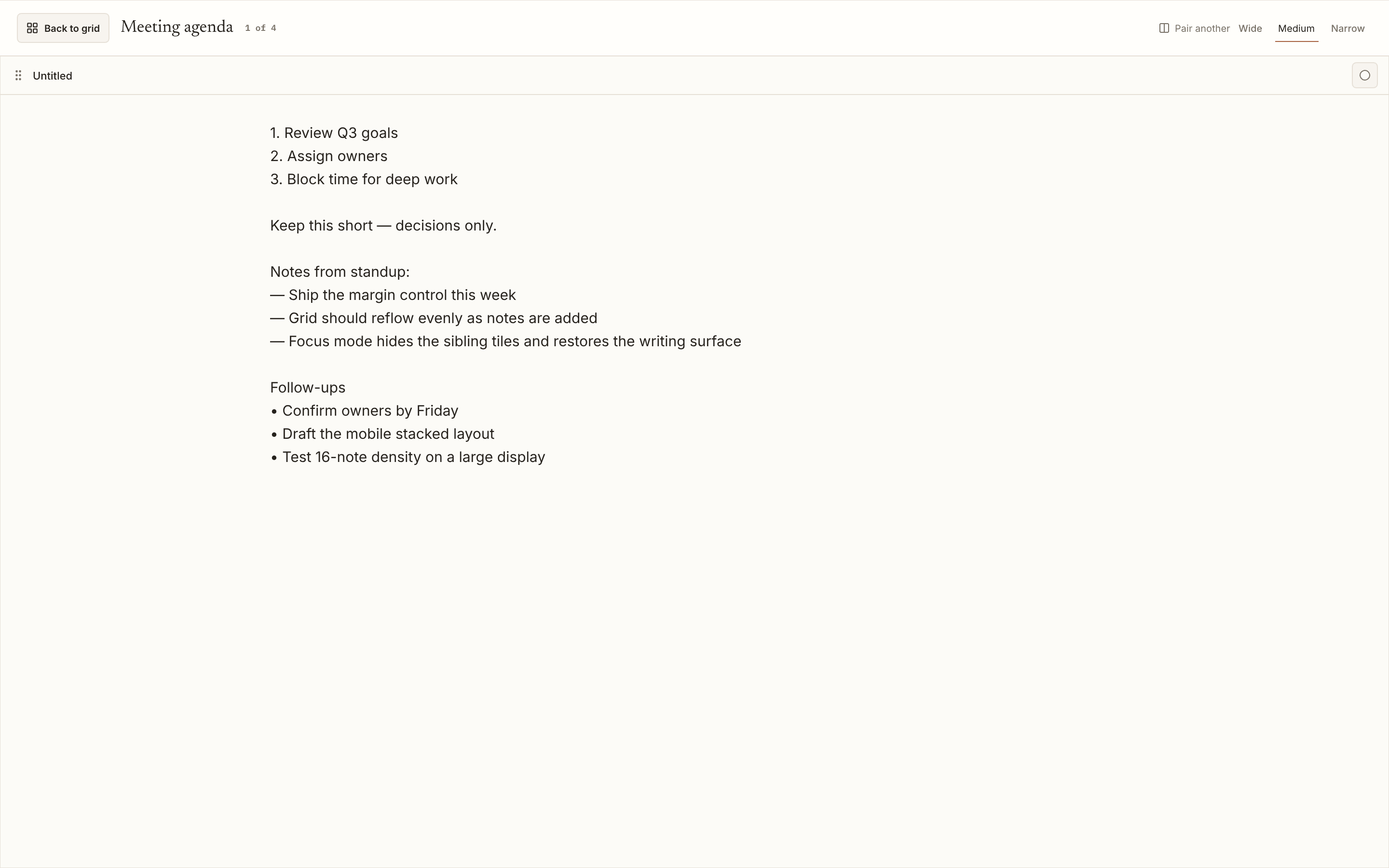
Click a card’s expand button, or press ⌘ Enter, to open a note full-screen. The line at the top is its title — click to rename it. Esc takes you back to the wall.
You write in markdown. The Read / Edit toggle in the toolbar switches between the tidied view and the raw marks; the format bar beside it handles bold, italic, headings, lists and the rest. Notes save themselves as you type.
Pictures go straight in: paste a screenshot with
⌘ V, or drag an image onto the
note. The file is kept exactly as it was, in an attachments
folder next to your notes. Click a picture to see it full
size (Esc closes it). Right-click it to Save image
as…, or on the Mac app, Show in Finder.
Markdown you can use
Two, side by side
With a note open, click Pair another and choose a second. They sit side by side — a source on the right while you write on the left, say. Esc drops back to one, then to the wall. Everything else stays exactly where you left it.

Keep it in order
Every note lives in a workspace — its own folder in your vault. Use one per project or client; the rail down the left switches between them (⌘ K), and ⌘ ⇧ N starts a new one. Preferences and theme are shared everywhere; only the notes are separate.
Open a workspace in the rail to list its notes and jump straight to one. Double-click a workspace to rename it, and drag workspaces to put them in a new order. The rail stays in reach while a note is open full-screen.
- Star, colour, duplicate or archive any note from its … menu.
- Filter the wall from the toolbar: Current, Starred, Recent, or Archive. Choosing Archive also lists your archived notes in the rail. Deleting for good lives in Archive — nothing is thrown away by accident.
- Order your notes by hand (Manual), by Recent, or by Title.
No search box yet
Palladium leans on arrangement rather than search — you put things where you’ll look for them. It’s on the list.
Make it yours
Open Settings from the account menu, top right, or ⌘ ,.
Choose a theme — match the system, always day, or
always night — and how dark night goes. The
Light / Dark mode button at the foot of the rail flips
between day and night in one click. Pick your
fonts and text size, and set the reading
column width (wide, medium or mobile) from the toolbar. Autosave
is on by default, and Show image links decides whether
the  line shows above each picture in Read mode.
Your notes are already plain files, but Download vault (under Account) keeps a single-file snapshot as a belt-and-braces backup.

They’re only files
Every note is a .md file in the folder you picked. Open them
in any editor, search them with any tool, back them up however you already
back things up. There’s no export button because there’s nothing
to export from.
Nothing leaves your machine — no account, no server, no sync, no telemetry. If this page vanished tomorrow, your notes would be exactly where you left them.
Keyboard shortcuts
On Windows and Edge, use Ctrl in place of ⌘.
That’s the whole thing
Open a folder and start writing. The rest you’ll find as you go.
Open PalladiumDesktop Chrome or Edge · Mac app coming soon